

How to show the teaser on your popup?
Overview
A teaser is a small, compact tab that stays on your storefront after a shopper closes the popup or clicks Maybe later. It works as a gentle reminder of your offer, so shoppers can reopen the popup and claim the discount whenever they’re ready, without the full popup interrupting their browsing.
With the teaser turned on, your popup moves from show once → forgotten to show once → always within reach, helping you capture more email sign-ups and recover shoppers who weren’t ready the first time.
Step 1: Open the popup editor
-
From your Shopify admin, go to Apps → Fordeer Sales Popup → Popups.
-
In the Popup List, find the popup you want to edit.
-
Click the ⚙️ Settings icon in the Actions column to open the popup editor.
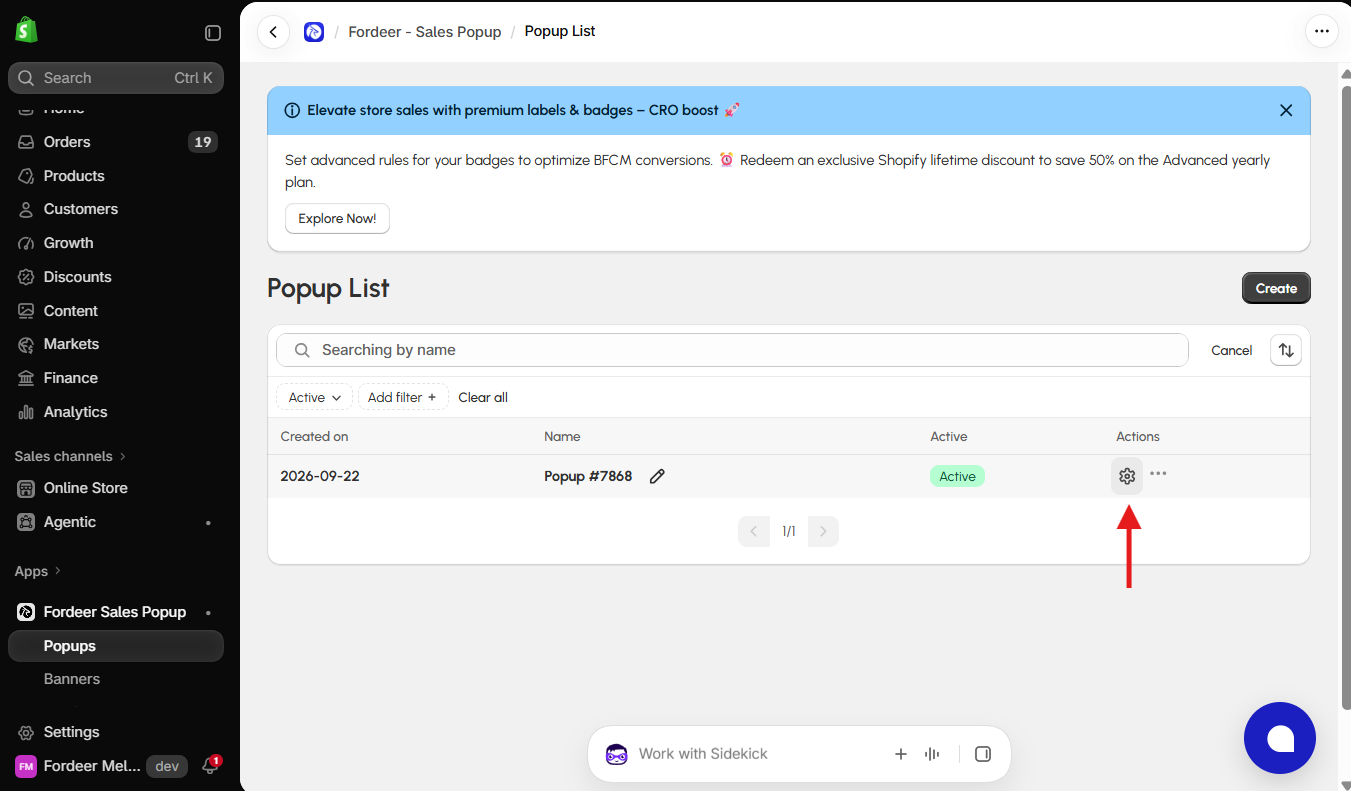
Tip: Don’t have a popup yet? Click Create in the top-right corner of the Popup List to create a new one.
Step 2: Turn on Show teaser
-
In the popup editor, select the Condition tab.
-
Click User behavior.
-
In the User behavior panel on the right, switch on the Show teaser toggle.
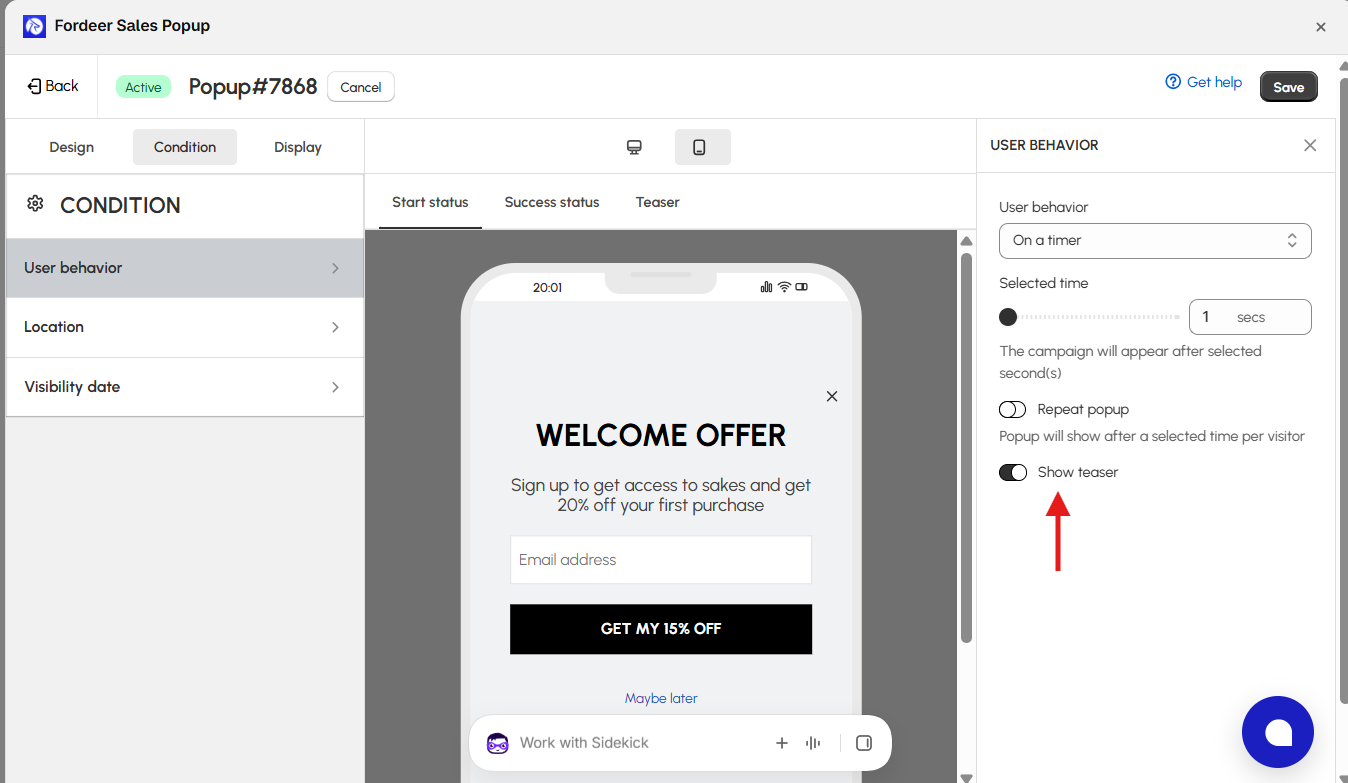
Note: The teaser works together with your User behavior settings. For example, with On a timer set to 5 seconds, the popup appears after 5 seconds, and once the shopper closes it, the teaser remains visible so they can reopen the popup later.
Step 3: Preview the teaser
-
At the top of the preview area, select the Teaser tab to see how the teaser will look on your storefront.
-
Use the Desktop and Mobile icons above the preview to check the teaser on both devices.
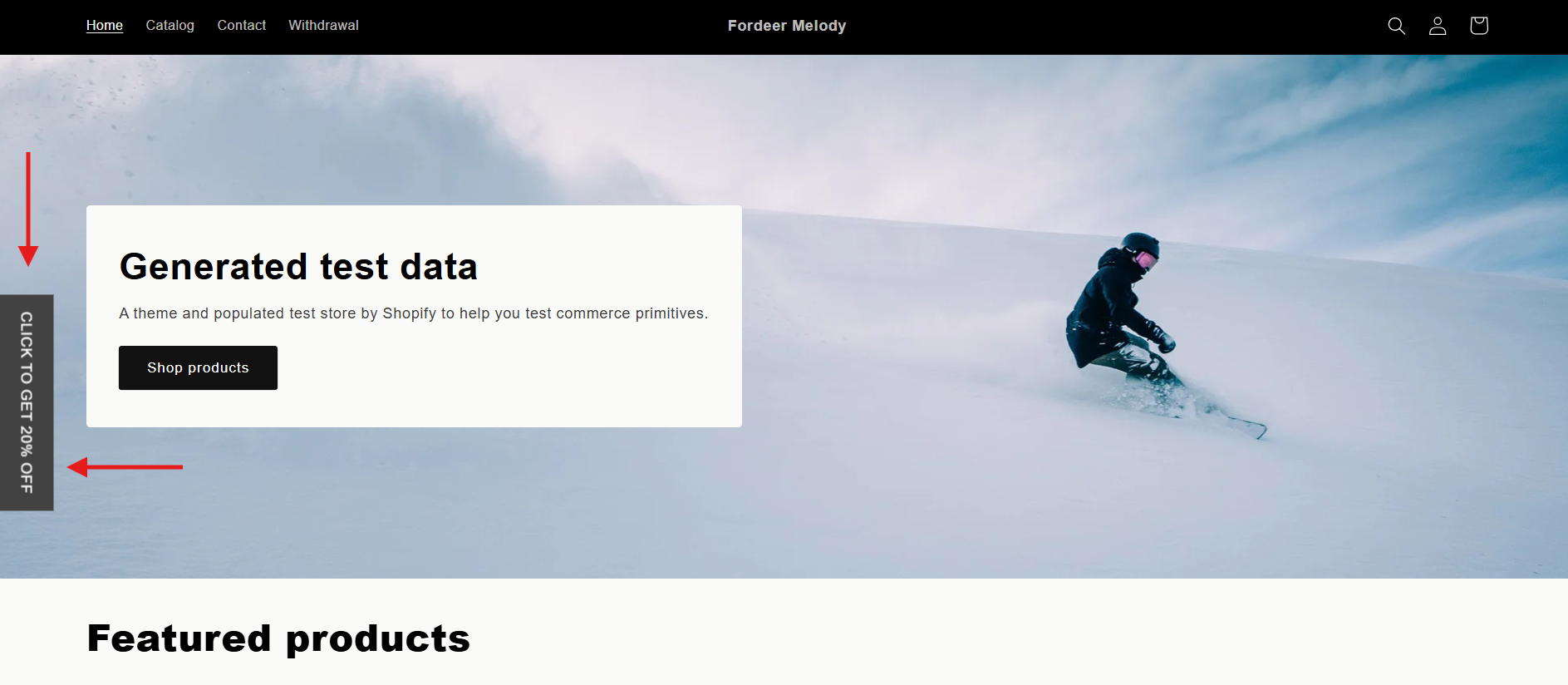
Tip: You can also switch between Start status and Success status to review the full popup journey, from the first view to after a shopper signs up.
Step 4: Save your changes
Click Save in the top-right corner of the editor. Make sure your popup status shows Active so the popup and teaser appear on your storefront.
Tip: Visit your storefront in an incognito window, close the popup, and check that the teaser appears as expected.
We value your feedback — it helps us continuously improve ForDeer and provide you with a better experience.
🖥️ Demo store: Check out here with password: 1
👉 Chat with us: Share your feedback directly with our team.
👉 Email us: hi@fordeercommerce.io
👉 Explore more apps: Discover more ForDeer apps.
👉 Join our community: Join ForDeer Community to get the latest updates, tips, and special deals.
🕐 Working hours: 8:30 AM – 5:00 PM (UTC+7), Monday–Friday.
We typically reply to live chats within minutes and emails within a few hours.
Need help? Feel free to reach out anytime via live chat or email