

Kindly stay on the Cart countdown page in our app, and then you can adjust the Alert box for the cart countdown.
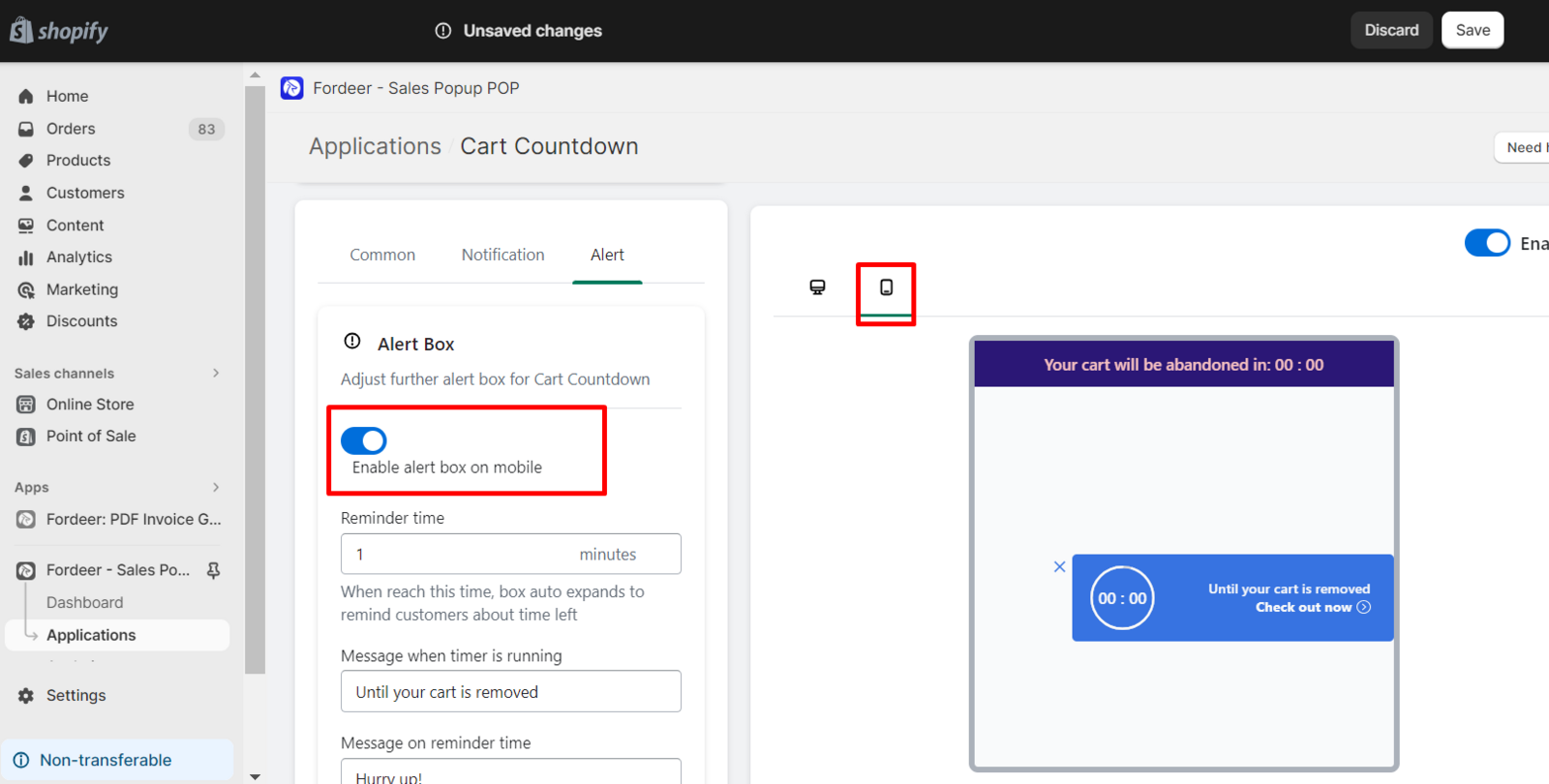
Allow the notification bar to show on the mobile version
If you want to show the alert box on the mobile version, kindly enable it on mobile and then click Save to save all the changes.
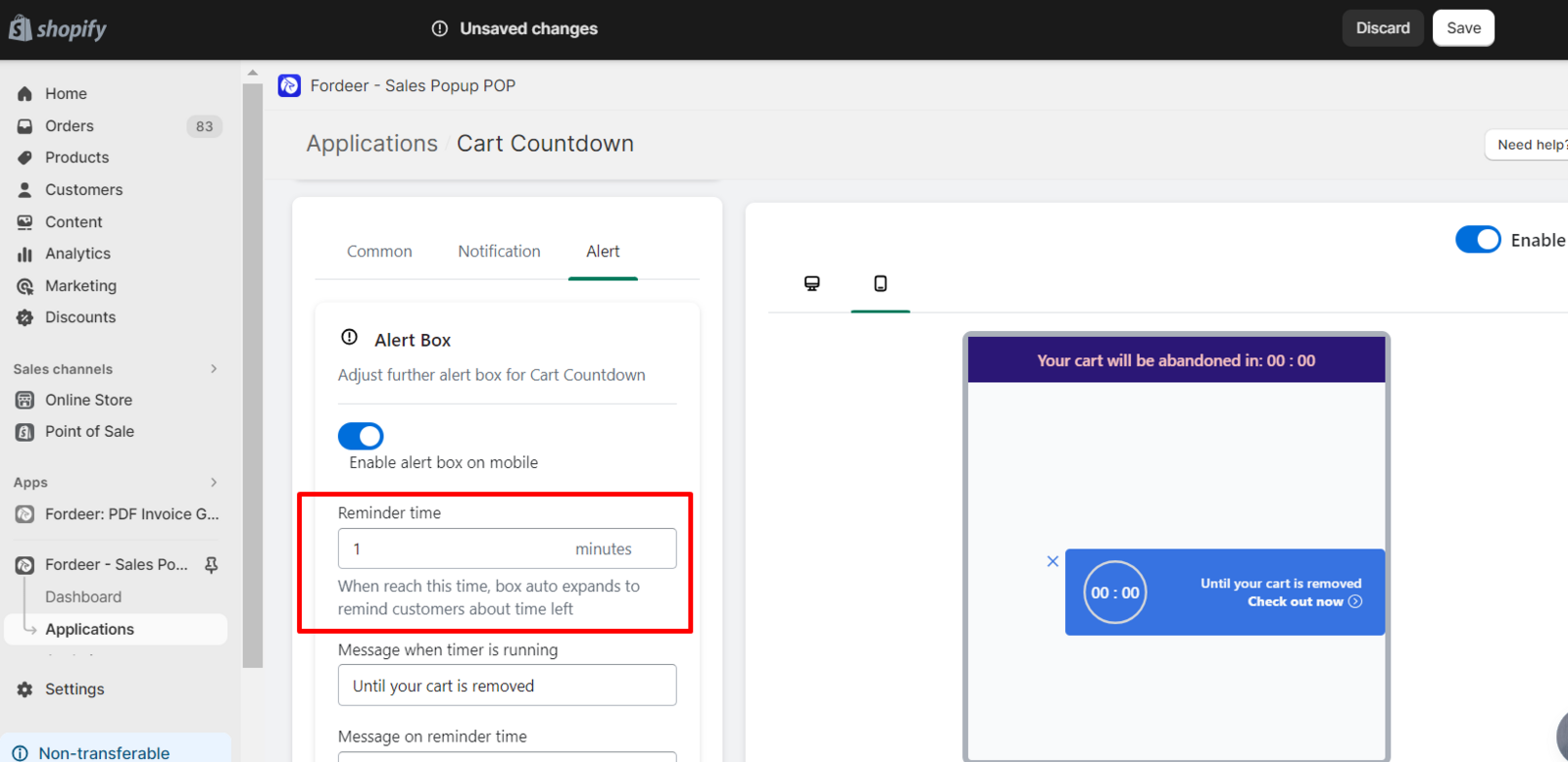
Modify the reminder time
This section allows you to set when to remind customers of their cart expiration. When countdown timer reaches this time, the alert box will expand to announce the time left until their cart is abandoned.
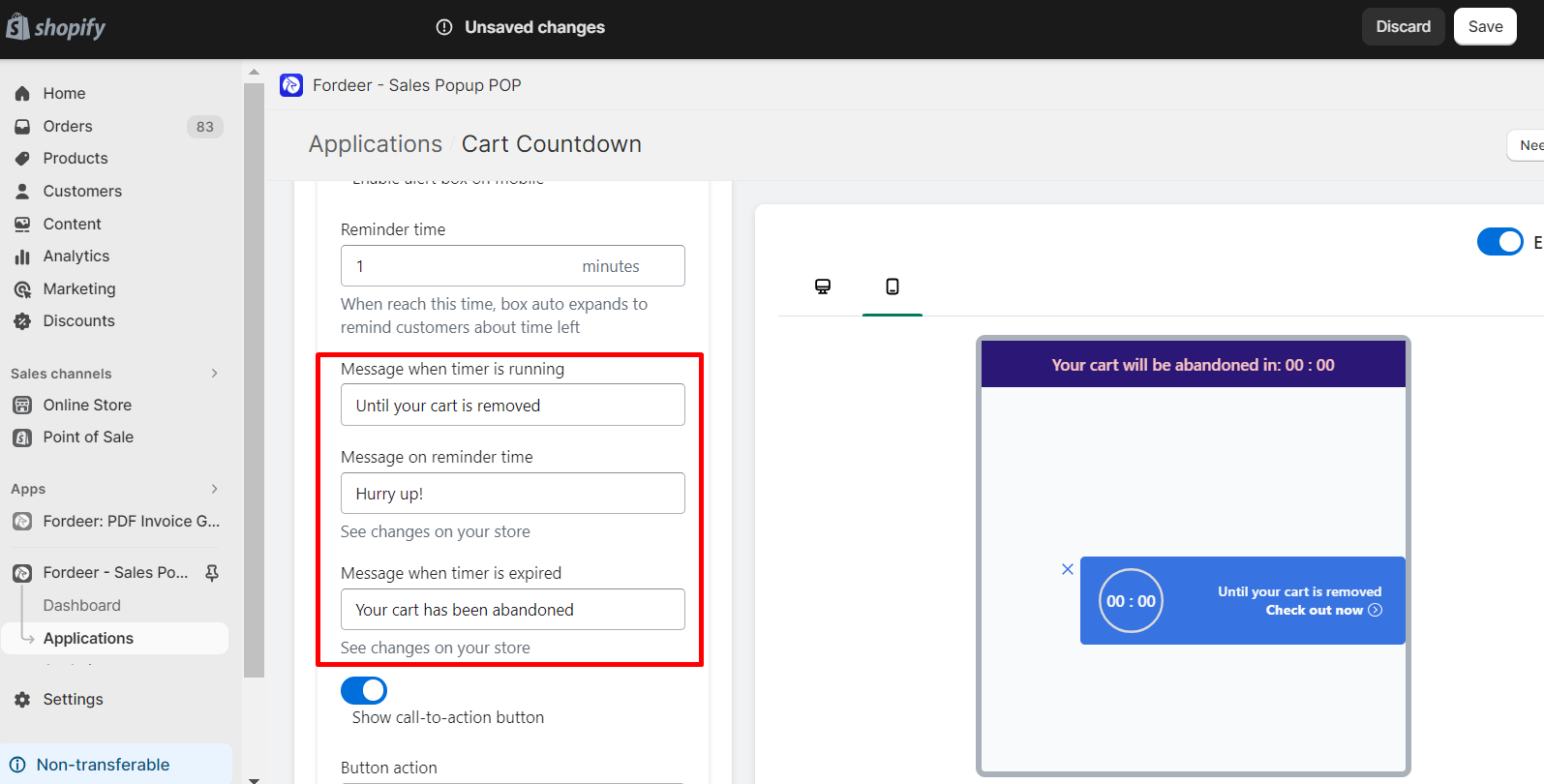
Change the message of the alert box
You can edit the countdown message, reminder message and expiration message in the section below Reminder time.
Add and customize button
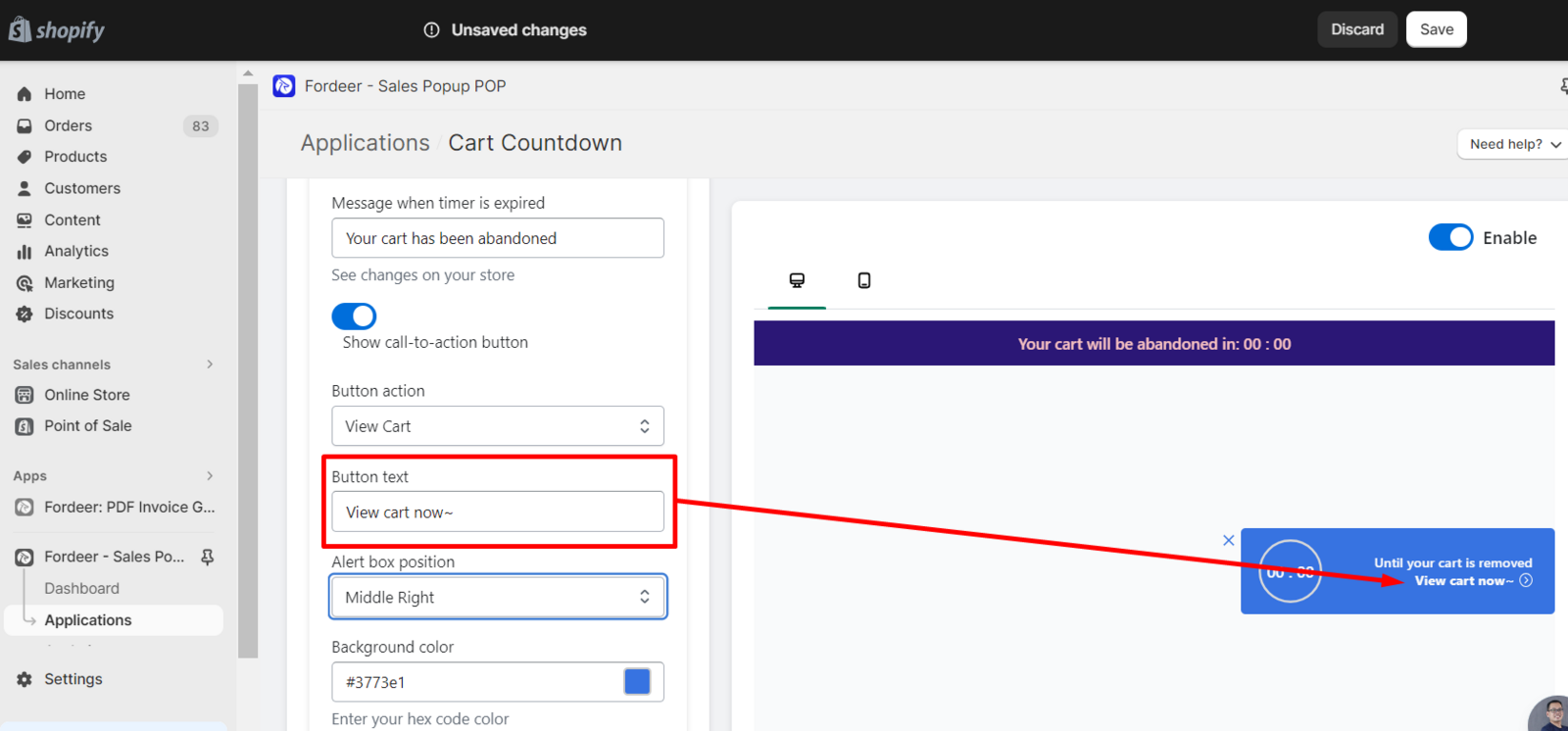
You can add a button to the alert box by enabling the Show call-to-action button and direct customers to the Checkout page or** Cart page** by choosing from Button Action and customizing button text.
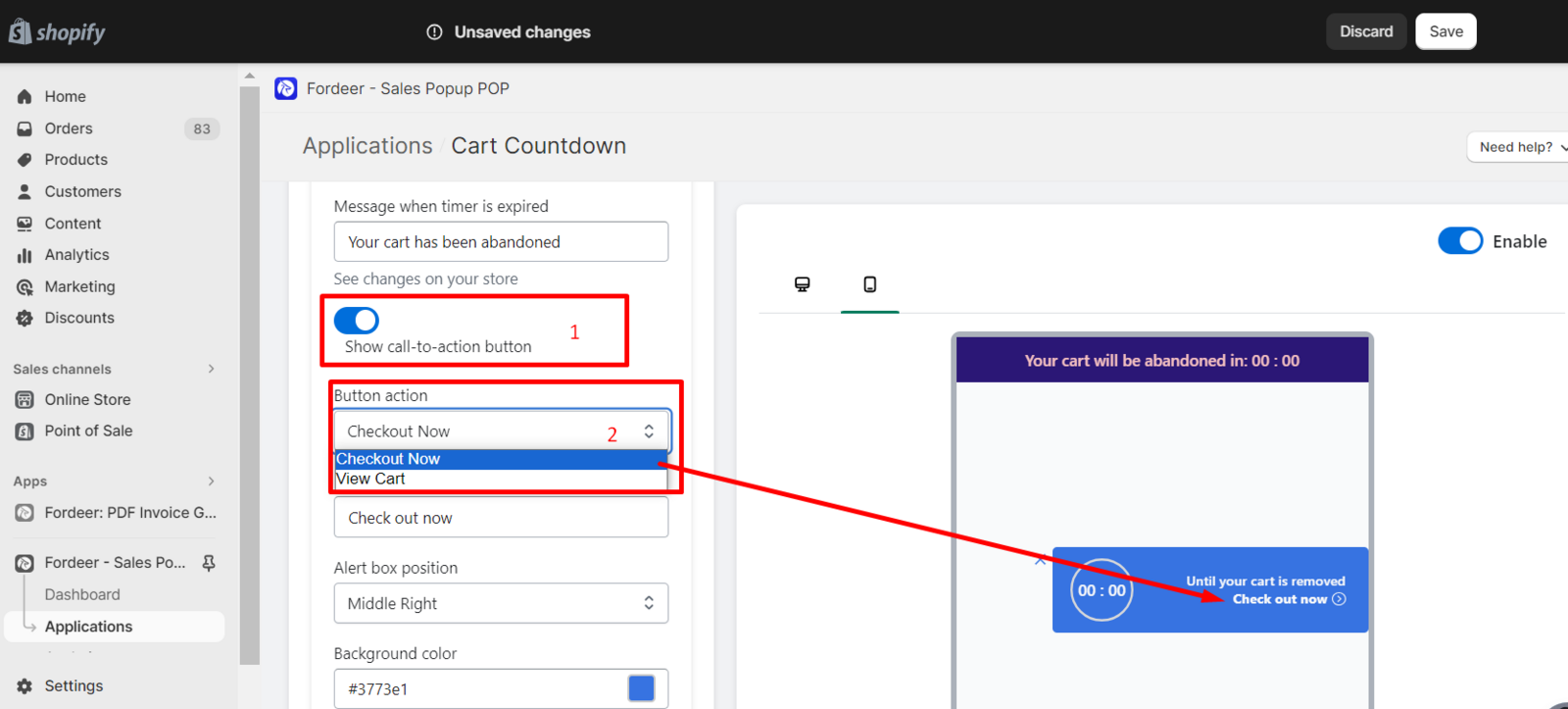
You can change button text by entering your own content into the box.
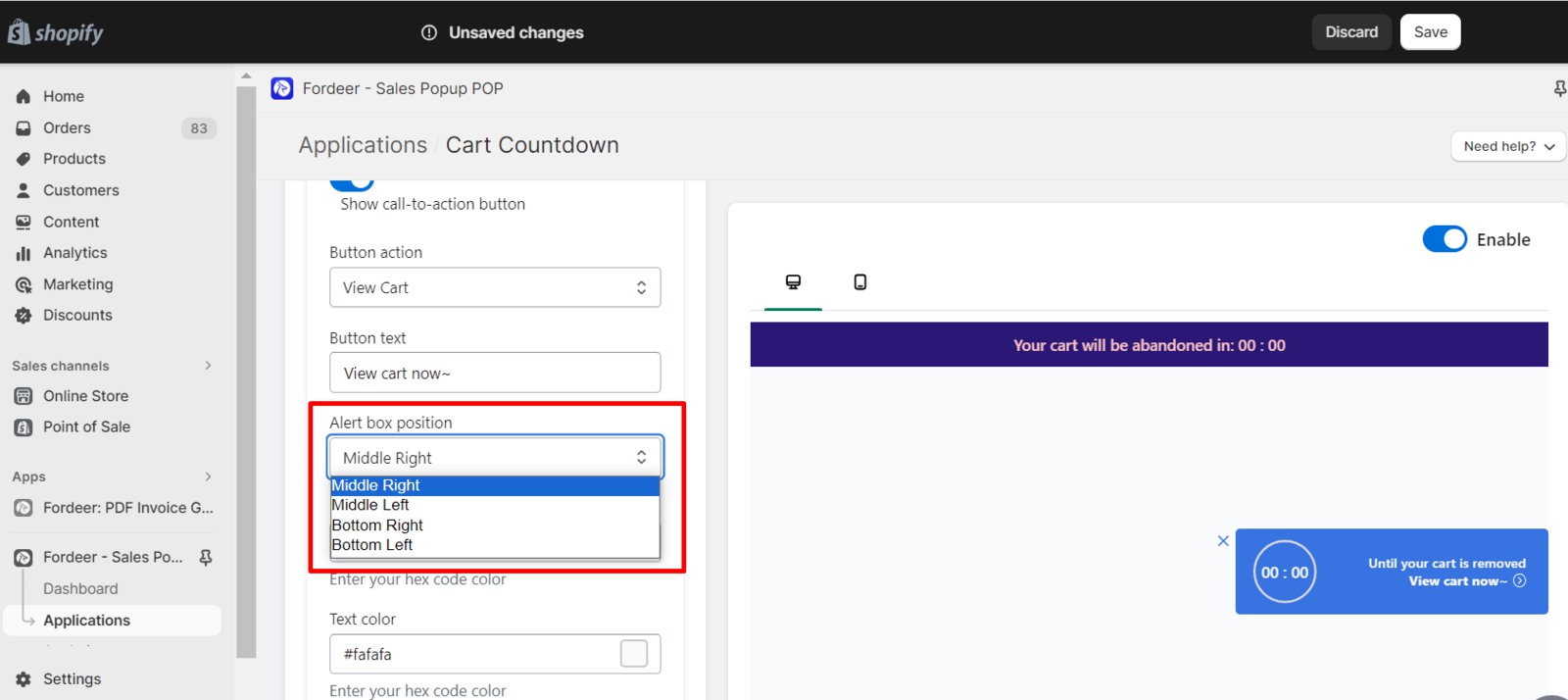
Customize the box position
You can select one of four alert box positions to grab customers attention and motivate them to check out.
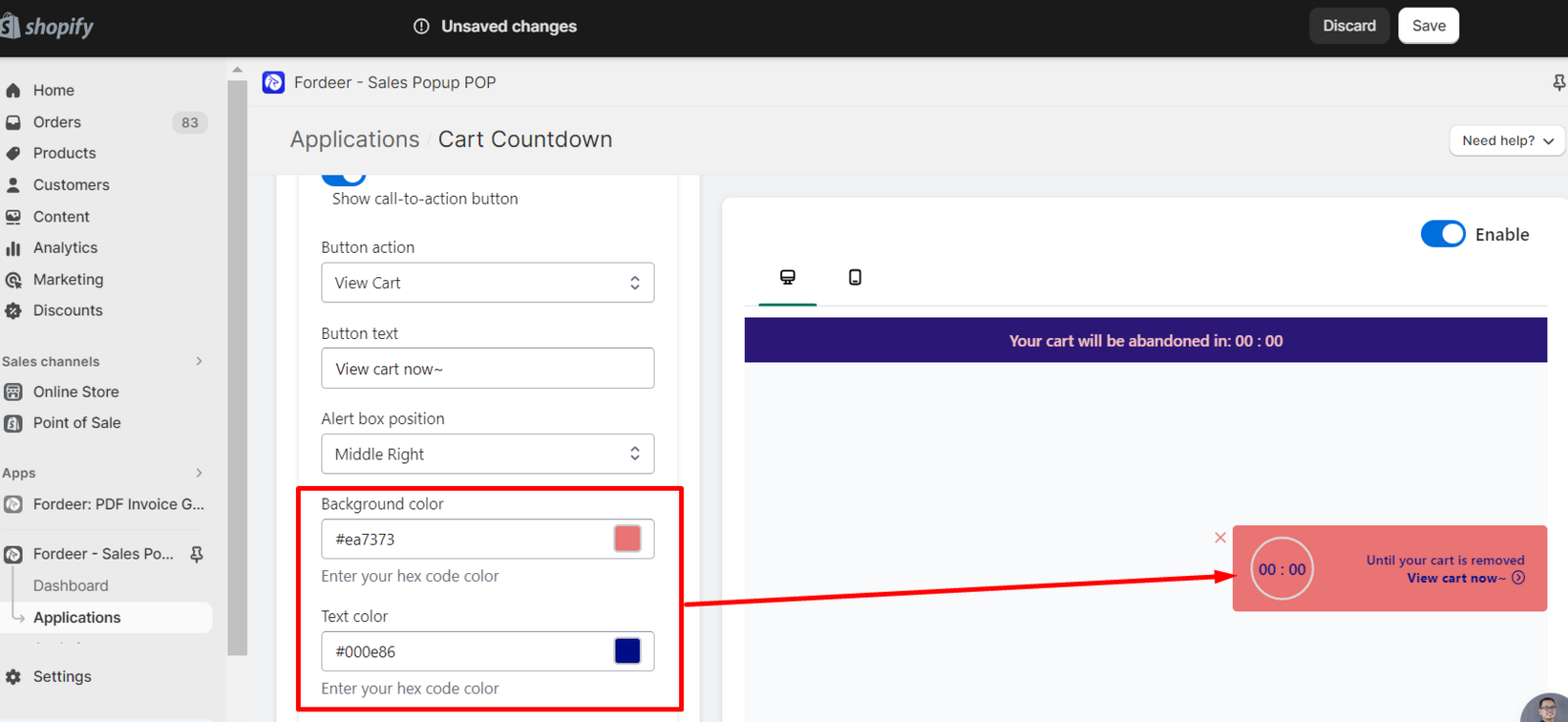
Customize the box color
You can enter your hex code color to change the background color and text color.
Kindly always remember to **Save **all the changes you have done.
We value your feedback — it helps us continuously improve ForDeer and provide you with a better experience.
🖥️ Demo store: Check out here with password: 1
👉 Chat with us: Share your feedback directly with our team.
👉 Email us: hi@fordeercommerce.io
👉 Explore more apps: Discover more ForDeer apps.
👉 Join our community: Join ForDeer Community to get the latest updates, tips, and special deals.
🕐 Working hours: 8:30 AM – 5:00 PM (UTC+7), Monday–Friday.
We typically reply to live chats within minutes and emails within a few hours.
Need help? Feel free to reach out anytime via live chat or email!