

Hello from Fordeer! If your website supports multiple languages, you may want to display sales popups in different languages to better engage your customers.
Default language behavior:
- The sales popup will automatically display in your store’s default language.
Example:
-
If your store has two languages (English and Spanish), and English is set as the default, the sales popup will display in English for all customers unless additional translations are added.
-
If Spanish is your store’s default language, you don’t need to use the translation feature—just edit the default message.
How to translate sales popups:
Please follow these steps to localize your sales popup content:
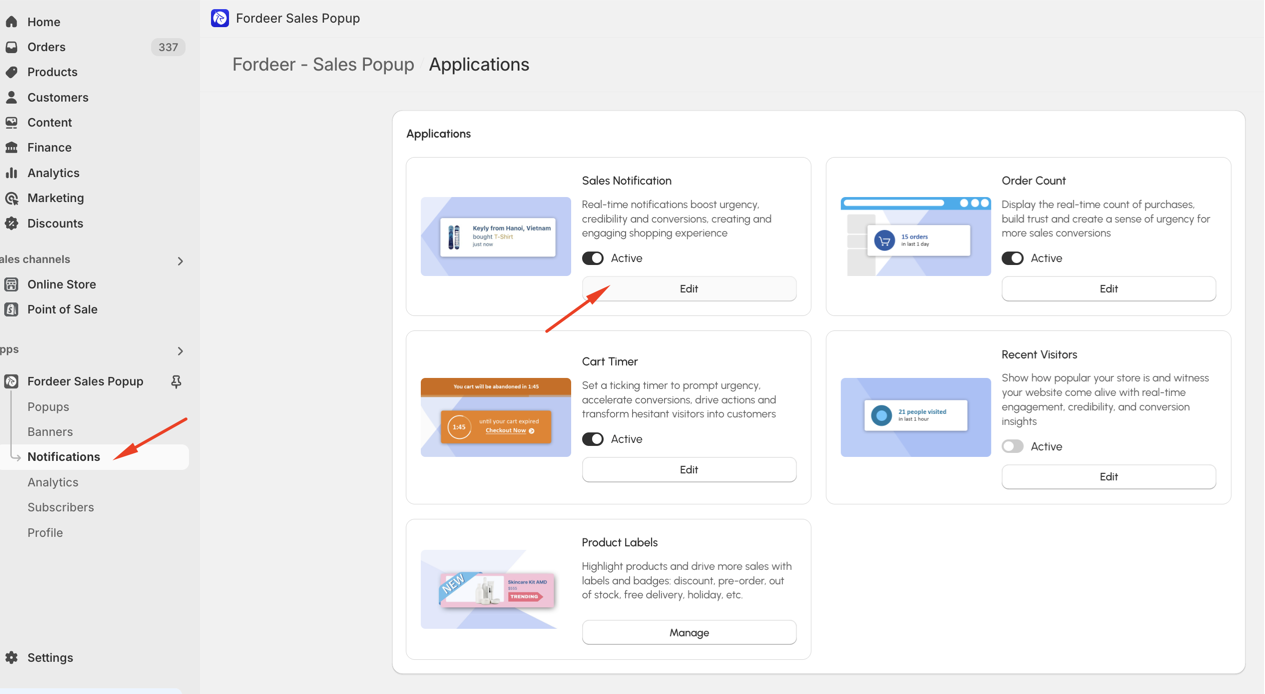
- Click Edit on an existing campaign or create a new campaign.
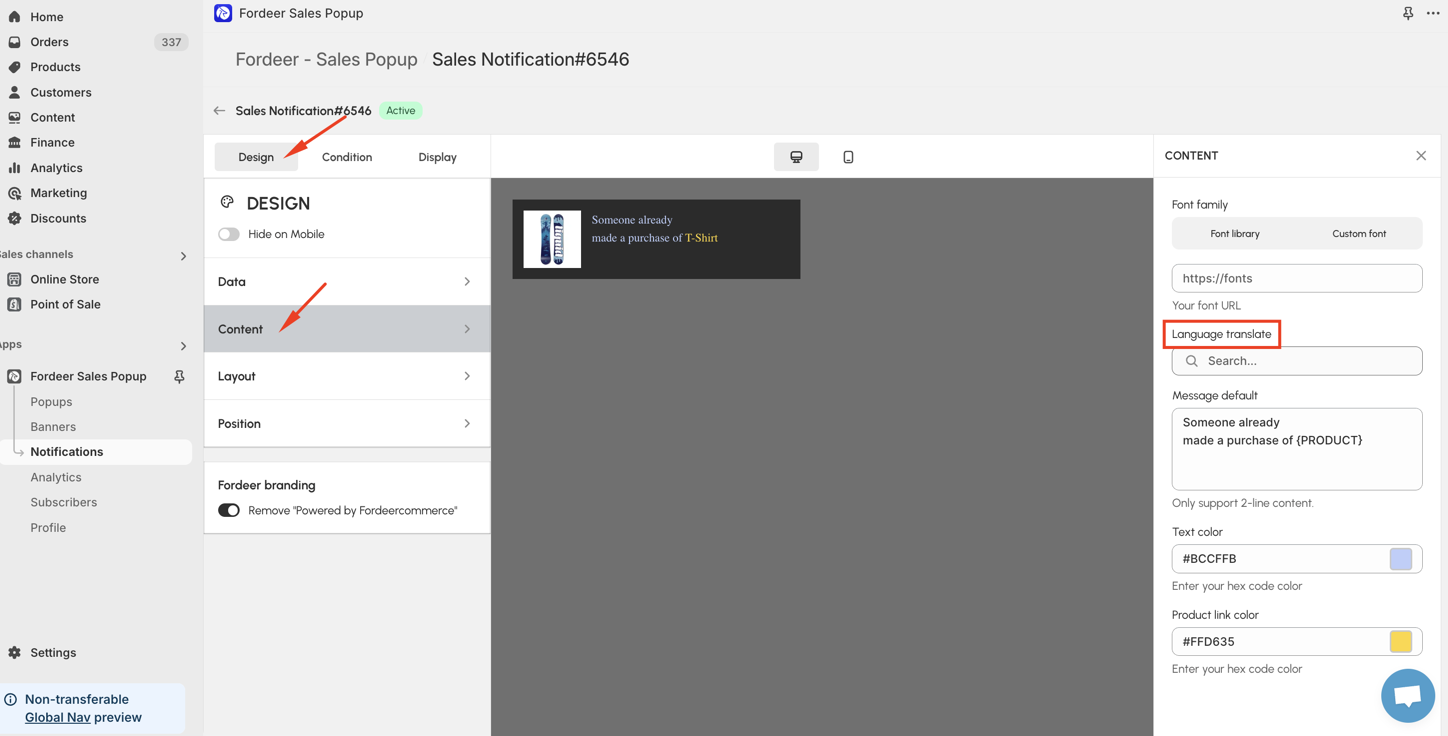
- Navigate to Design > Content > Language translate
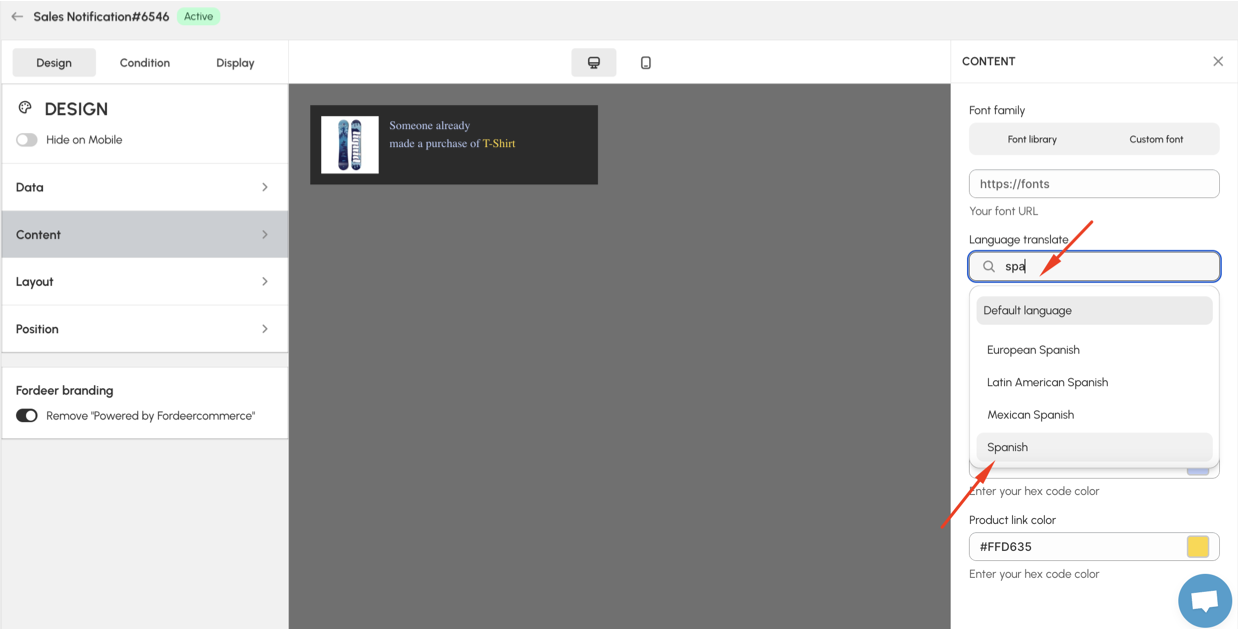
- Search for the desired language (e.g., Spanish).
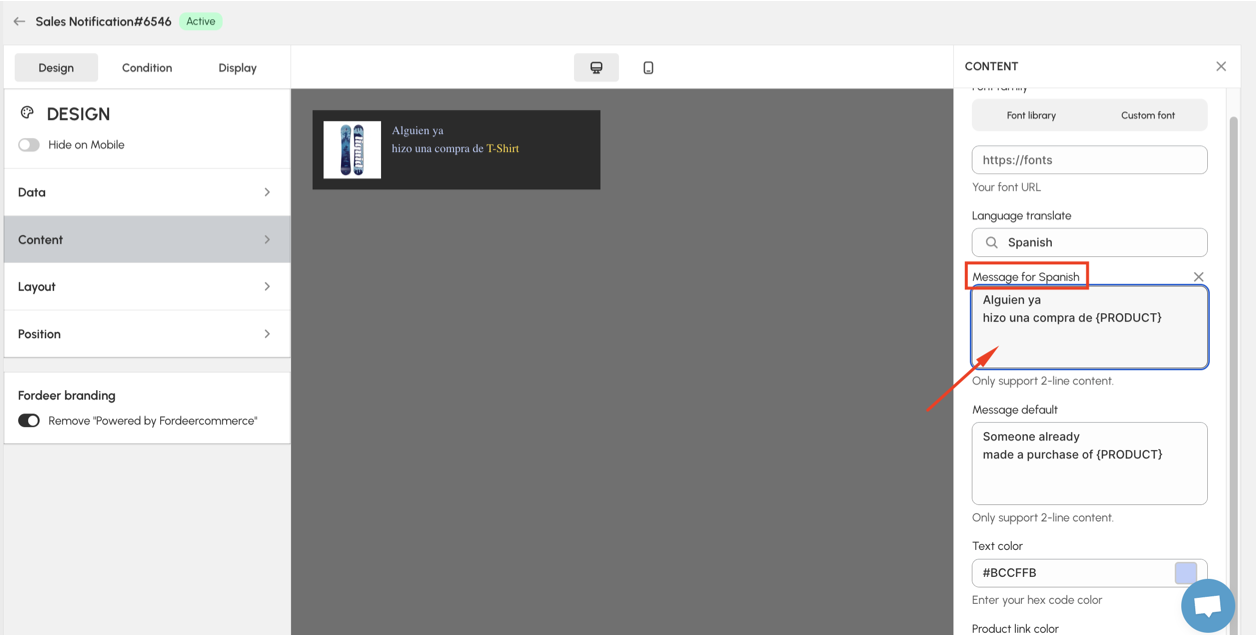
- A box labeled Message for selected language will appear. Edit the content as needed.
- Save your changes by clicking the Save button.
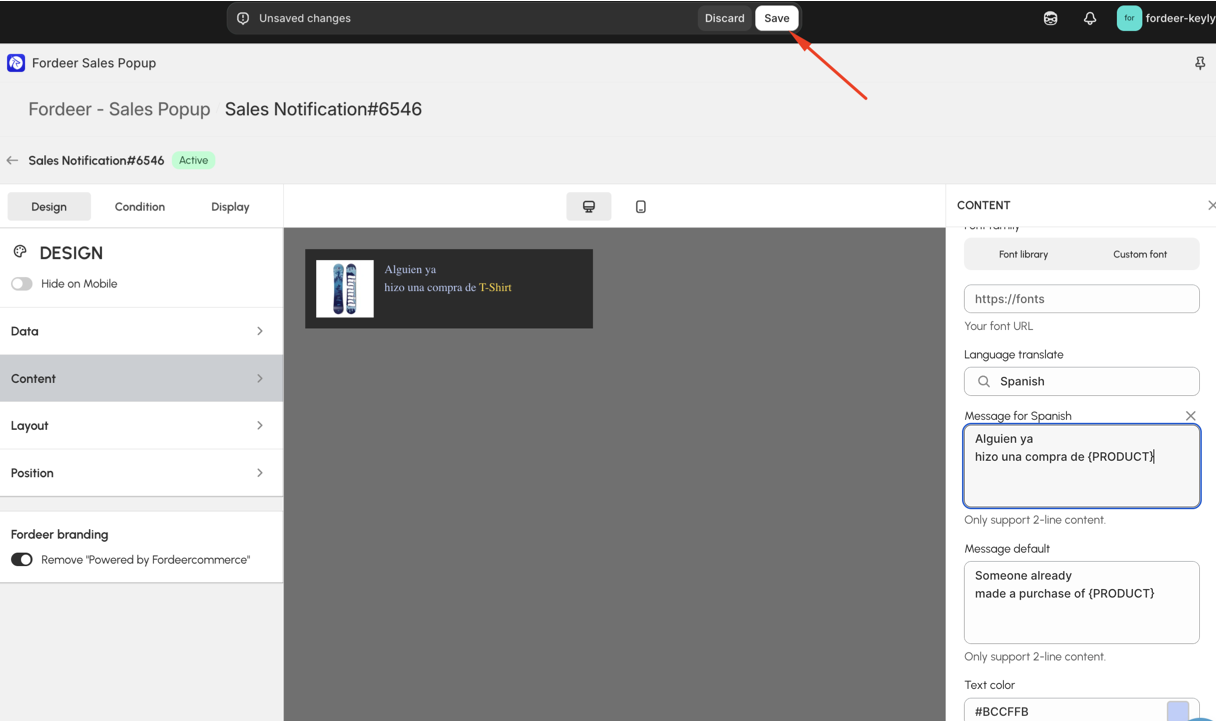
Once saved, your sales popups will reflect the localized content for each language. 🎉
Please give them a try and do not hesitate to contact us if you have any questions along the way.
We value your feedback — it helps us continuously improve ForDeer and provide you with a better experience.
🖥️ Demo store: Check out here with password: 1
👉 Chat with us: Share your feedback directly with our team.
👉 Email us: hi@fordeercommerce.io
👉 Explore more apps: Discover more ForDeer apps.
👉 Join our community: Join ForDeer Community to get the latest updates, tips, and special deals.
🕐 Working hours: 8:30 AM – 5:00 PM (UTC+7), Monday–Friday.
We typically reply to live chats within minutes and emails within a few hours.
Need help? Feel free to reach out anytime via live chat or email!