

Fordeer hello to you!
Previously, sales notifications required manual data entry to display on your storefront. However, our app has been updated recently, and now you can import a CSV file with custom data to streamline this process.
Here's a step-by-step guide on how to import a CSV file for sales notifications:
1. Download the CSV sample file.
-
Go to the Data section on the Sales Notifications settings page in our app.
-
Here, click Download sample CSV action
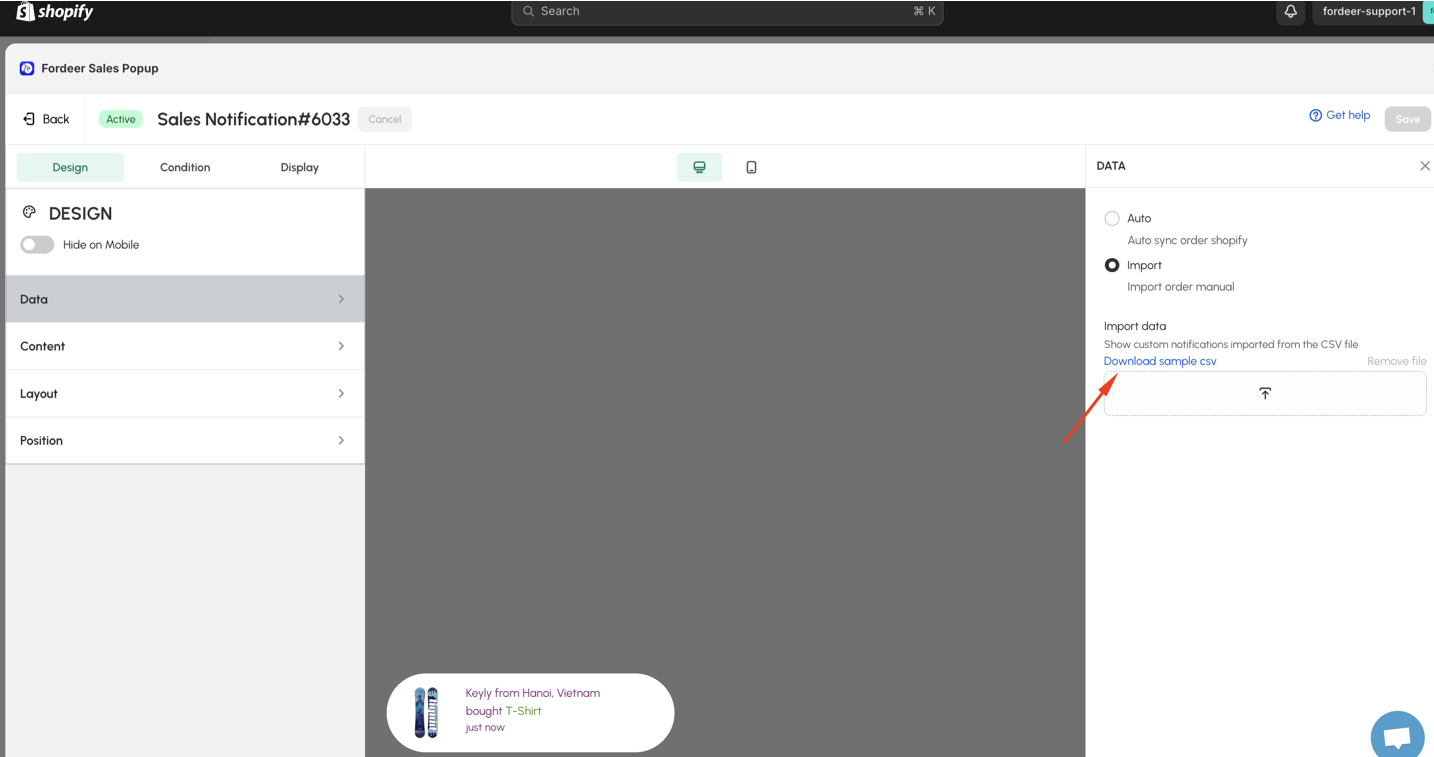
2. Edit data in CSV file
Import the file to Google Sheet and start to edit it. There are couple of fields you have to add the content to the CSV file included: Created at, Product name, Product URL, Product image URL.
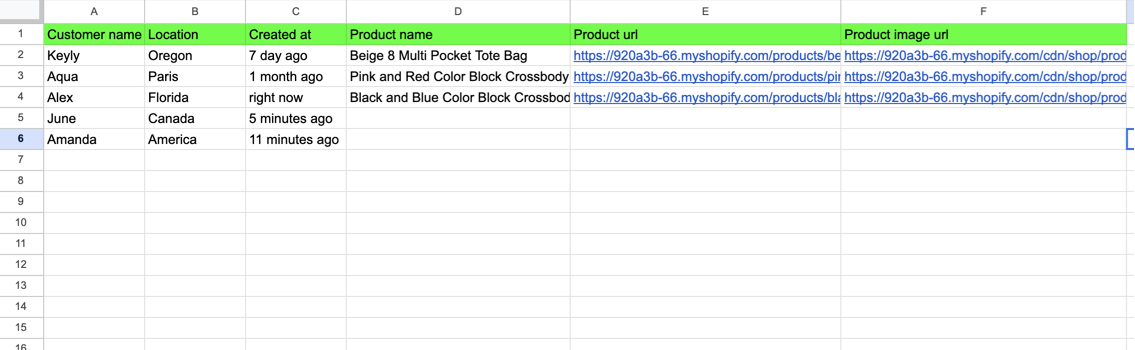
Customer name and Location columns are optional.
Kindly remove all the columns having no data and recheck all the information you add to the file.
How to get product URL and product image URL?
How to get product URL?
Kindly get the product URL on your storefront.
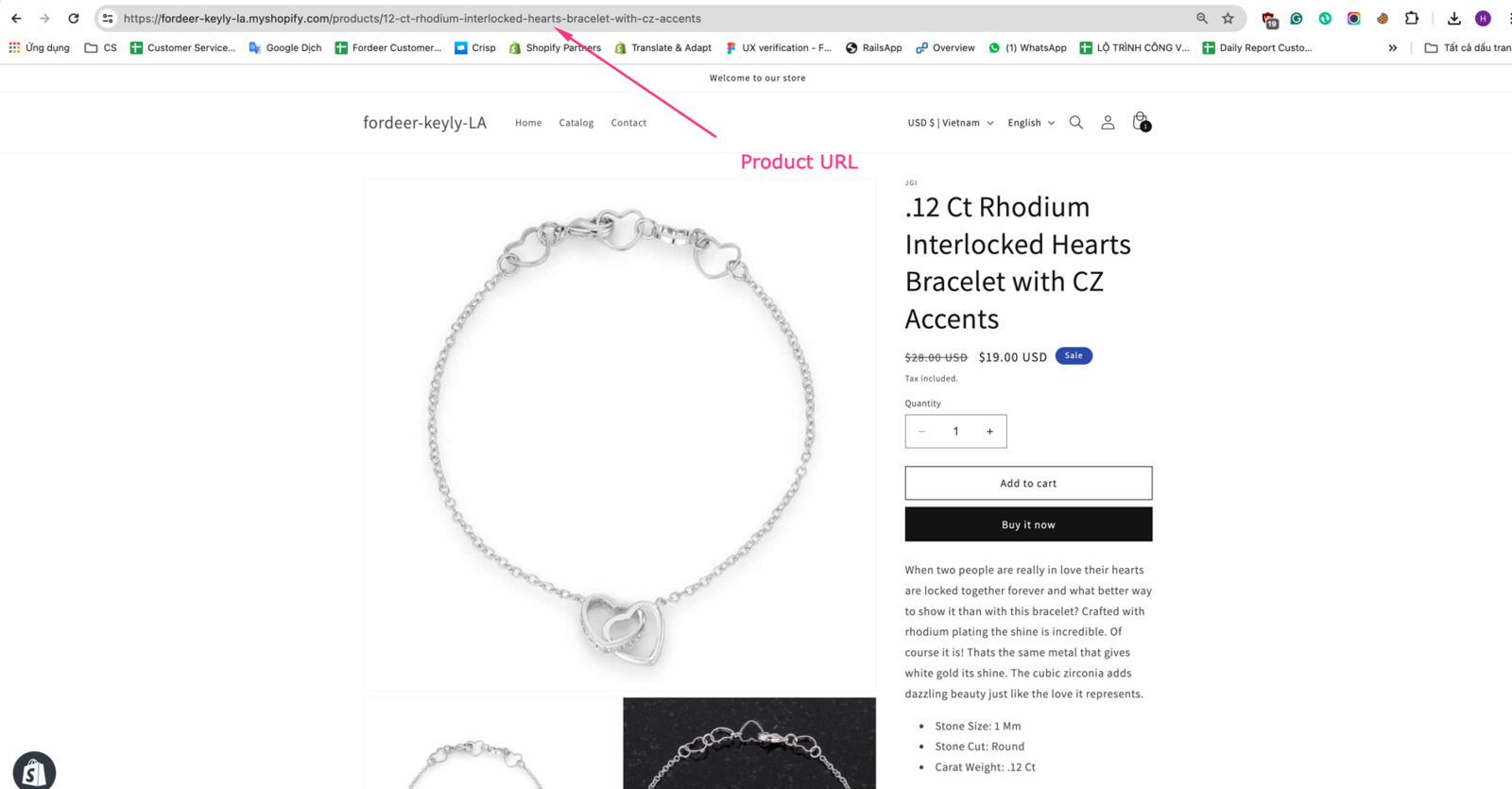
How to get product image URL?
Right-click on the image and select "Copy Image Address".
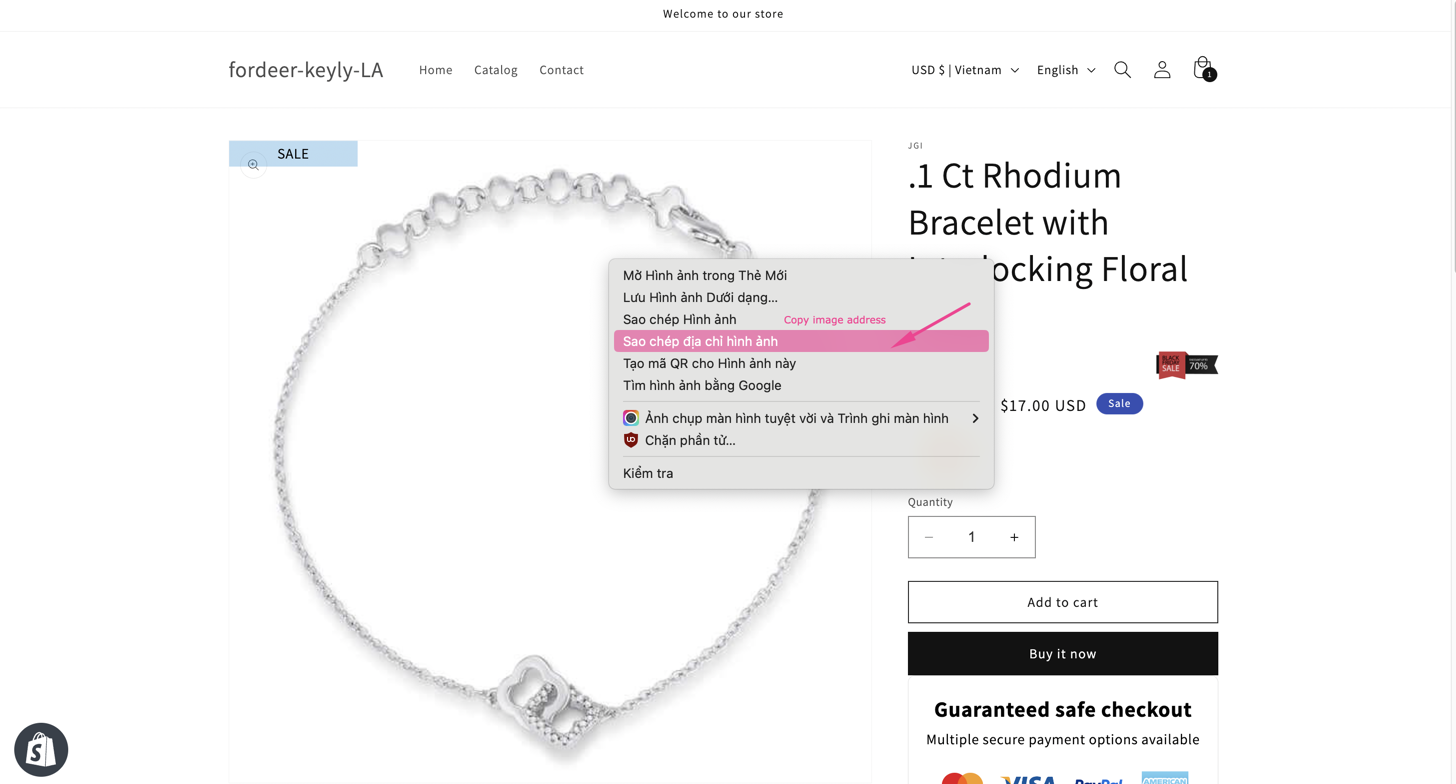
After edit the file, download it in CSV format and import back to our app.
3. Import the CSV File
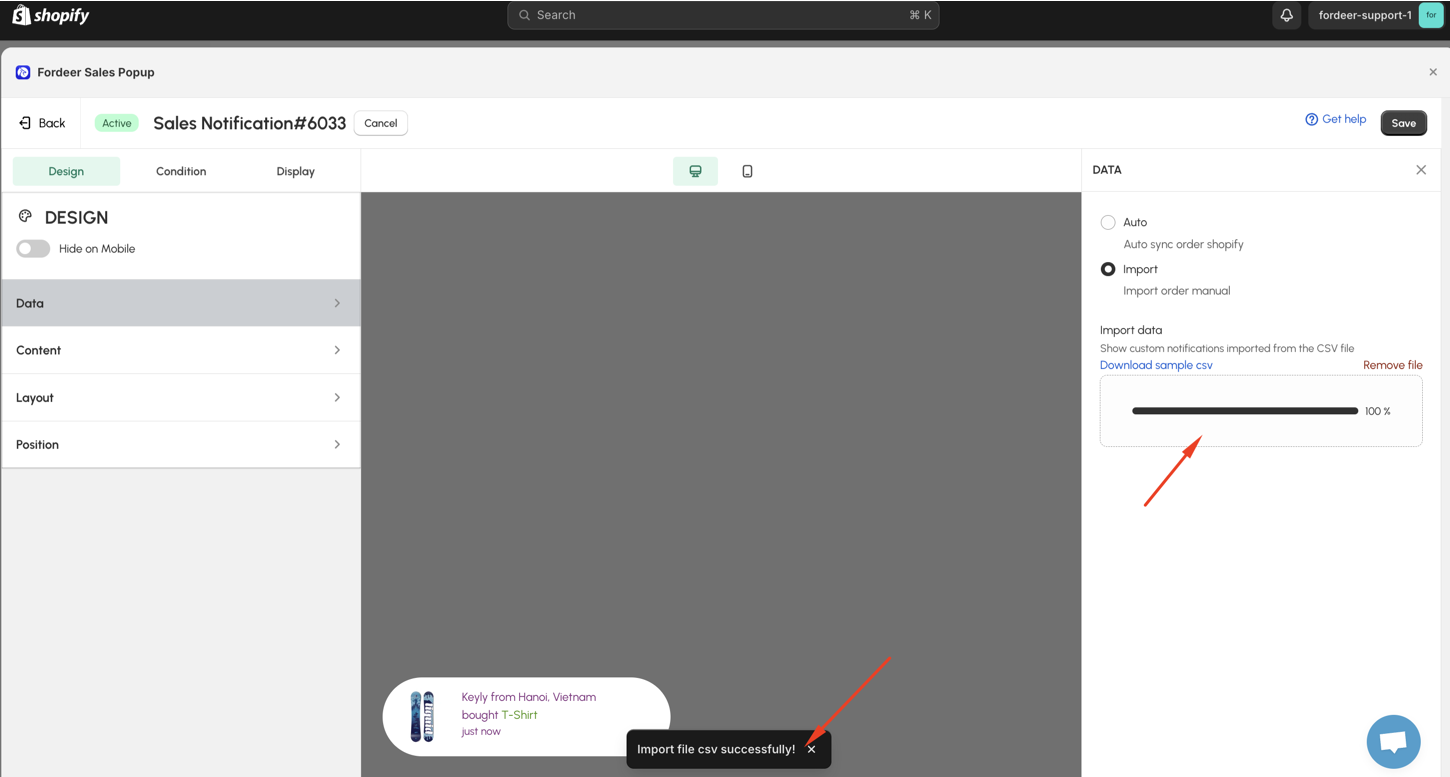
- Click Add file icon, select your updated file, and then you can see the notification that " Import file CSV successfully".
4. Save Your Settings
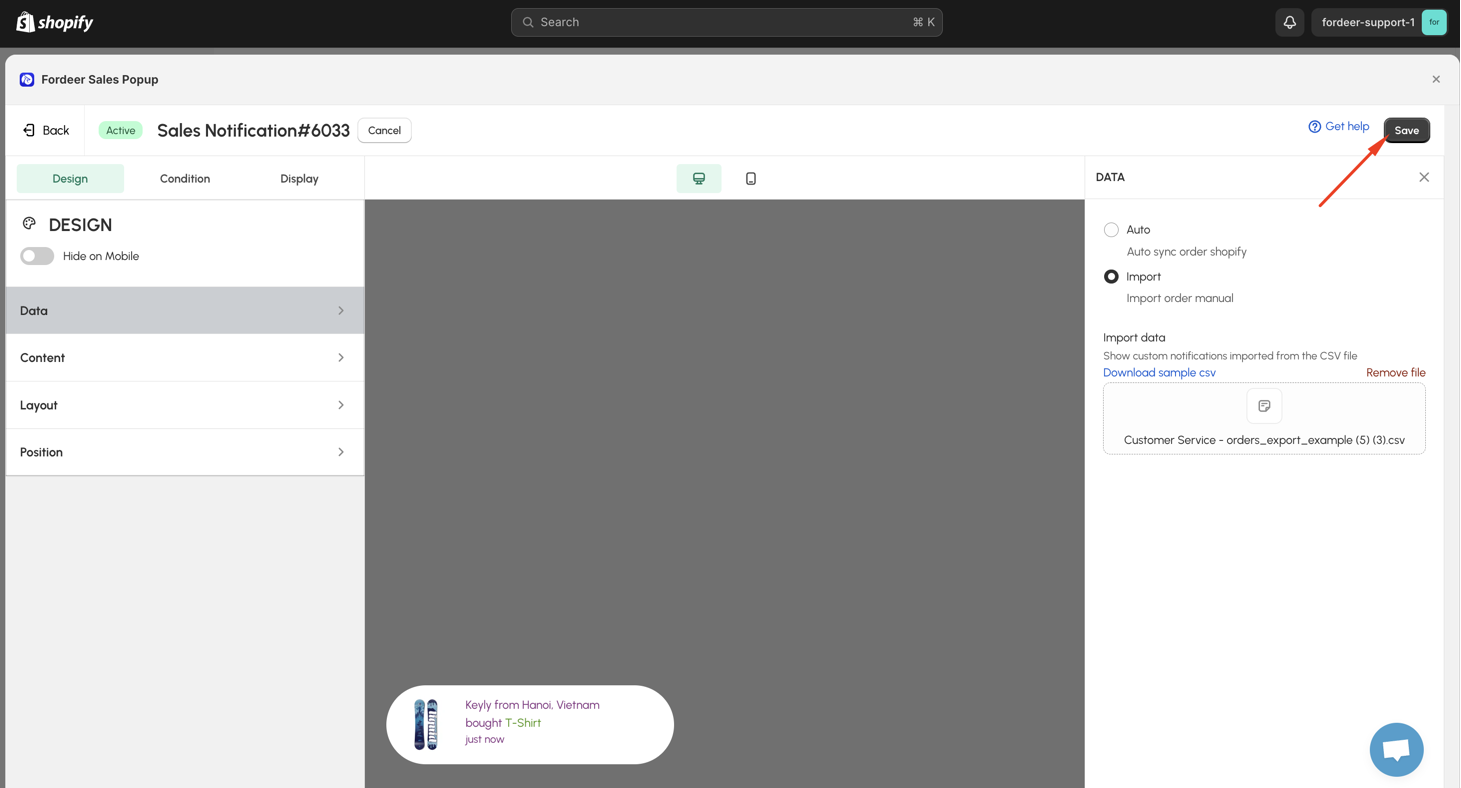
- Make sure to click Save at the end to apply all the changes.
By following these steps, you can easily import data to show on sales notification.
We value your feedback — it helps us continuously improve ForDeer and provide you with a better experience.
🖥️ Demo store: Check out here with password: 1
👉 Chat with us: Share your feedback directly with our team.
👉 Email us: hi@fordeercommerce.io
👉 Explore more apps: Discover more ForDeer apps.
👉 Join our community: Join ForDeer Community to get the latest updates, tips, and special deals.
🕐 Working hours: 8:30 AM – 5:00 PM (UTC+7), Monday–Friday.
We typically reply to live chats within minutes and emails within a few hours.
Need help? Feel free to reach out anytime via live chat or email!